
How to download music from Spotify

If you pay the premium Spotify price, chances are you've spent some time making playlists, enjoying songs, and using the platform's simple (and newly renovated) user interface to discover new and old music.
But sometimes all of your favourite music or podcasts are unavailable if you don't have an internet connection to stream them from, such as on a long plane travel or a weekend camping vacation in the woods. That's where Spotify's offline listening function comes in handy, allowing you to download playlists, albums, and podcasts via its desktop and mobile apps so you can rock out even when you're not connected to the internet.
You must be a Spotify Premium subscriber to perform this. Subscribers to the free version can only download podcasts. If you have a Premium subscription, you can download up to 10,000 tracks to up to five devices, but you must log in once every 30 days to keep them from being deleted.

It's also worth mentioning that you can't download individual songs from Spotify; you must first add them to, or build, a playlist, which you can then download. However, complete albums can be downloaded.
Here's how to download Spotify music for offline listening. If you want to learn more about Spotify, see our Spotify explainer.
How to download music from Spotify's mobile app -
Launch the Spotify app on your smartphone or tablet. Before you begin, be sure to customise your download choices based on your mobile data status. Turn off your device's mobile data first if you don't want to utilise it.
Step 1: Go to Settings, Audio Quality, and scroll down to Download.


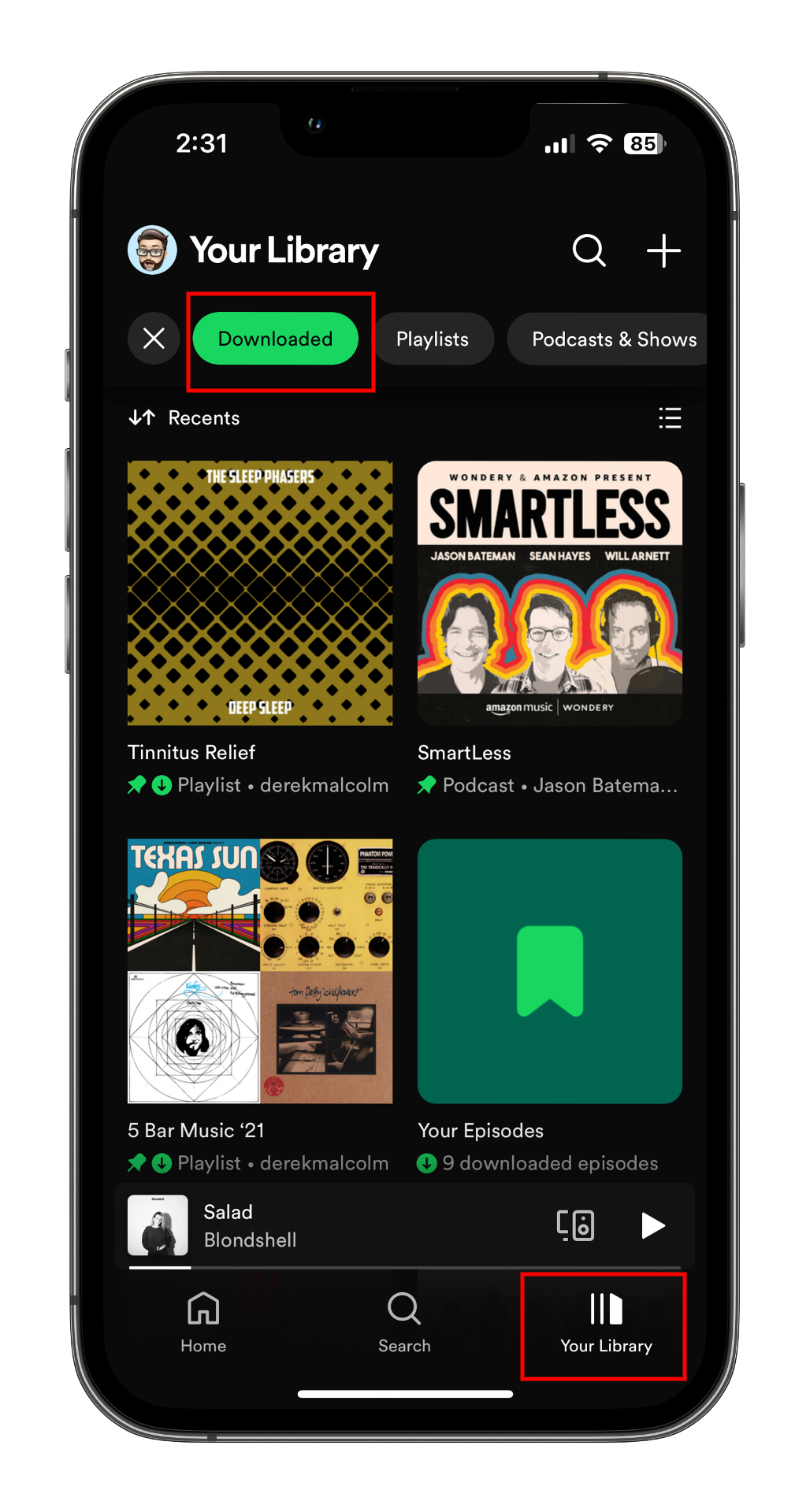
If you've just had a download frenzy for a long road trip or flight, here's the easiest way to locate all that good stuff.
Step 1: On the Spotify app, choose the Your Library icon on the bottom toolbar.
 Step 2: Use the Downloaded filter at the top. This will parse out everything you've downloaded, ensuring that anything from here will play when you don't have an internet connection.


You should mainly superior together with well-performing material, which means that see it: Spotify Podcast
ReplyDelete